 FreeUpDisk
How to Free Up Disk Space on Mac When Your Storage Is Full
If your Mac disk is full and a macOS update or a file save just failed, here is how to reclaim space fast. The trick is to go after the biggest files first. A single old backup or media folder can free more space in one move than an hour of deleting small files, so this guide is ordered by what frees the most, fastest. Everything here is safe, and nothing touches your documents or a working macOS.
How to free up disk space on your Mac
To free up disk space on your Mac, clear the largest recoverable files first: find and remove or offload big media, delete old iOS backups, clear downloaded screensaver videos, empty the Trash and Downloads, and remove unused apps. Leave System Data's purgeable space and system files to macOS. Most Macs get back the room they need from the first two or three moves.
The steps below are ordered roughly by how much space they free for most people, so you can stop as soon as you are clear.
Start with the biggest files
Open the Apple menu, then System Settings, then General, then Storage, and let the bar finish calculating. Categories like Applications and Documents have a small (i) button that lists their largest items, which points you at the big folders. To see the single largest files across your whole Mac, not just category totals, check your storage with a visual map first.
The steps, ordered by space freed
1. Remove or offload large media
Photos, videos, and screen recordings are usually the single largest thing on a personal Mac. Move the ones you rarely open to an external drive, or turn on iCloud Photos so macOS keeps recent items local and offloads the rest. A crowded video or Photos library is often the fastest 20 to 100 GB you will find.
2. Delete old iOS and iPadOS backups
A single iPhone or iPad backup can run 5 to 50 GB, and most people have a few from devices they no longer own. Connect the device, select it in the Finder sidebar, then under General click Manage Backups. Delete backups for old devices or ones you have moved to iCloud, and keep the most recent backup for any device you still use.
3. Clear downloaded screensaver videos
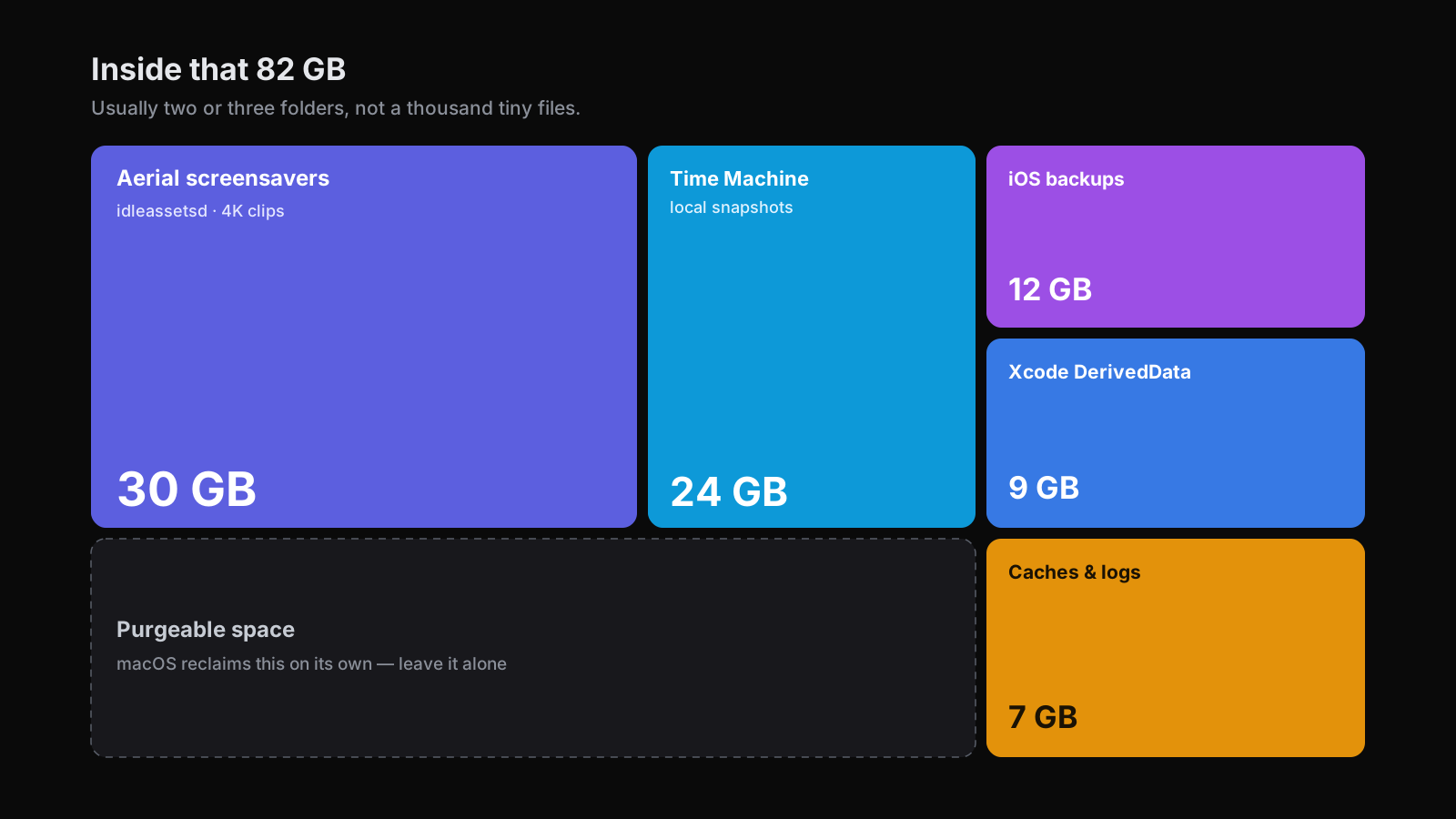
The 4K aerial screensavers macOS downloads in the background can reach 10 to 40 GB and sit inside System Data. If you do not use them, open System Settings, then Screen Saver, and switch away from the aerial options so macOS stops downloading new clips. The clips it already downloaded are purgeable, so macOS clears them as it needs the room. It is a large, safe win that most people never think to check.
4. Empty the Trash and clear Downloads
Files in the Trash keep using space until you empty it, so right-click the Trash in the Dock and choose Empty Trash. Then open your Downloads folder, sort by size, and delete the installers, disk images, and archives you already used. A year of downloads is easily 10 to 30 GB. Remember Photos keeps a Recently Deleted album for 30 days, so empty that too if you are tight.
5. Remove apps you no longer use
Large creative and game apps can be 5 to 20 GB each. Open the Applications folder, and move the ones you do not use to the Trash, or use an app's own uninstaller if it has one for a cleaner removal. Empty the Trash afterward so the space is actually freed.
6. Offload files to iCloud or an external drive
For files worth keeping that you rarely open, offload rather than delete. In the Storage screen, Recommendations includes Store in iCloud, which keeps recent files local and moves the rest to iCloud when space runs low. An external drive does the same job for archives and media you access rarely, and it is a one-time move that keeps your disk clear.
7. Clear caches, and know what returns
Browser and app caches free a few gigabytes, and clearing a browser cache from inside the browser is safe. The honest caveat: caches rebuild as you use your Mac, so this frees less than the big steps above and the space returns. Do not hand-delete the system cache folders in Library, which can log you out of apps for no lasting gain. Developers are the exception here: Xcode DerivedData, old simulators, and a few abandoned node_modules folders can hold 20 GB or more, they rebuild on demand, and clearing them is safe.
Disk full and macOS won't update?
A macOS update needs free space to unpack and install, usually 20 GB or more, which is well beyond the size of the download itself. That is why an update can refuse to start on a full disk even though the installer is only a few gigabytes.
To free that room quickly, run the biggest steps above in order: delete old iOS backups, clear downloaded screensaver videos, empty the Trash and Downloads, and offload large media. Aim to get a comfortable margin above whatever the installer says it needs, not just barely over the line. If your Mac is so full that apps will not open, starting up in safe mode clears certain system caches temporarily and can give you just enough room to work with.
Why your disk is still full after you deleted things
If you deleted files and the bar barely moved, you are almost certainly looking at purgeable space and System Data. macOS marks caches, Time Machine local snapshots, and other recoverable files as purgeable, and reports them as used until it needs the room. It also keeps a large System Data bucket you cannot open directly.
The good news is you do not have to fight it. The steps above already clear System Data's biggest real contents, snapshots, backups, and screensaver videos, and macOS reclaims the purgeable remainder on its own. For the full breakdown of what is inside that number and what is safe to remove, see what System Data on Mac actually is.
The fastest way to find what's big
Every step above is easier once you can see your disk. The built-in Storage screen tells you a category is large but not which files, so you end up guessing which folder is the 40 GB one.
FreeUpDisk shows your whole Mac as a Space Map, a treemap where every file and folder is a block sized to the space it uses. The largest files are the biggest blocks, obvious at a glance, so freeing space becomes a matter of clearing the few blocks that matter. Deep Scan, an AI-powered pass, then reads the files that are hard to judge and labels each one: safe to remove, purgeable and it will come back, or leave alone.
You stay in control the whole time. The scan is read-only, and nothing is deleted without your explicit OK. If you want the methodical version, here is the full Mac cleanup routine. You can see how the Space Map works, or try FreeUpDisk and be among the first to free up your Mac when it launches.
Frequently asked questions
How do I free up disk space on my Mac?
Start with the biggest files. Find and remove or offload large media and old iOS backups, clear downloaded screensaver videos, empty the Trash and Downloads, and remove apps you no longer use. Chasing the few largest folders frees far more space, far faster, than deleting lots of small files.
Why is my Mac disk full when I have nothing on it?
Usually because of System Data and purgeable space. macOS stores caches, logs, Time Machine local snapshots, and old backups, and holds recoverable files as purgeable until it needs the room. So the disk reads as full even when your own documents and photos are small. Clearing the few genuinely large folders is the fix.
How do I free up space on my MacBook Air?
The same way as any Mac, and it matters more because Air models often ship with a small 256 GB SSD. Open System Settings, then General, then Storage, offload large media to iCloud or an external drive, delete old iOS backups, and clear downloaded screensaver videos. The Storage screen's Recommendations can offload files automatically.
How do I free up space so macOS can update?
A macOS update often needs 20 GB or more of free space, more than the update file itself. Free that room fast by deleting old iOS backups, clearing downloaded screensaver videos, emptying the Trash and Downloads, and offloading large media. Once you are a comfortable margin above what the installer asks for, the update will proceed.
Is it safe to free up disk space on a Mac?
Yes, if you stick to recoverable clutter and leave system files alone. Trash, Downloads, old backups, downloaded screensaver videos, and app caches are all safe to clear. Never delete files inside the System folder or run broad delete commands in Terminal, and prefer offloading over deleting for anything you might want later.
What frees up the most disk space on a Mac?
Large media libraries, old iOS backups, and System Data culprits like Time Machine local snapshots and downloaded screensaver videos are usually the biggest wins, often tens of gigabytes each. That is why finding your largest files first frees more space in a few minutes than an hour of deleting small ones.
See how FreeUpDisk works
Visual treemap, instant scan, safe cleanup, all for free.
Related guides
What Is System Data on Mac? What's Inside and How to Clear It
System Data is macOS's catch-all storage bucket. See exactly what is inside it, whether it is safe to delete, and how to shrink it on your Mac safely.
ReadHow to Clean Up Mac Storage: A Safe, Step-by-Step Guide
Your Mac is full and you want it cleared safely. Here is the exact order to clean up Mac storage, biggest wins first, without deleting anything you need.
ReadHow to Check Mac Storage: Every Way to See What's Using Space
See how much storage your Mac has left and what is using it. Every built-in way to check Mac storage, what each one shows, and how to see it file by file.
Read