 FreeUpDisk
What Is System Data on Mac? What's Inside and How to Clear It
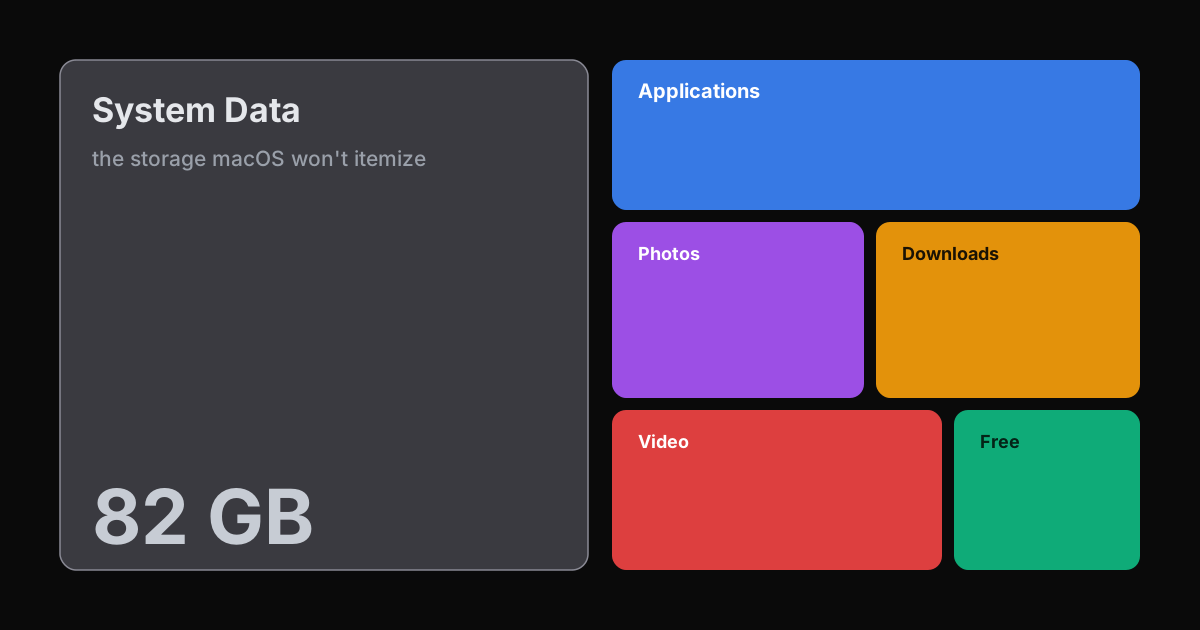
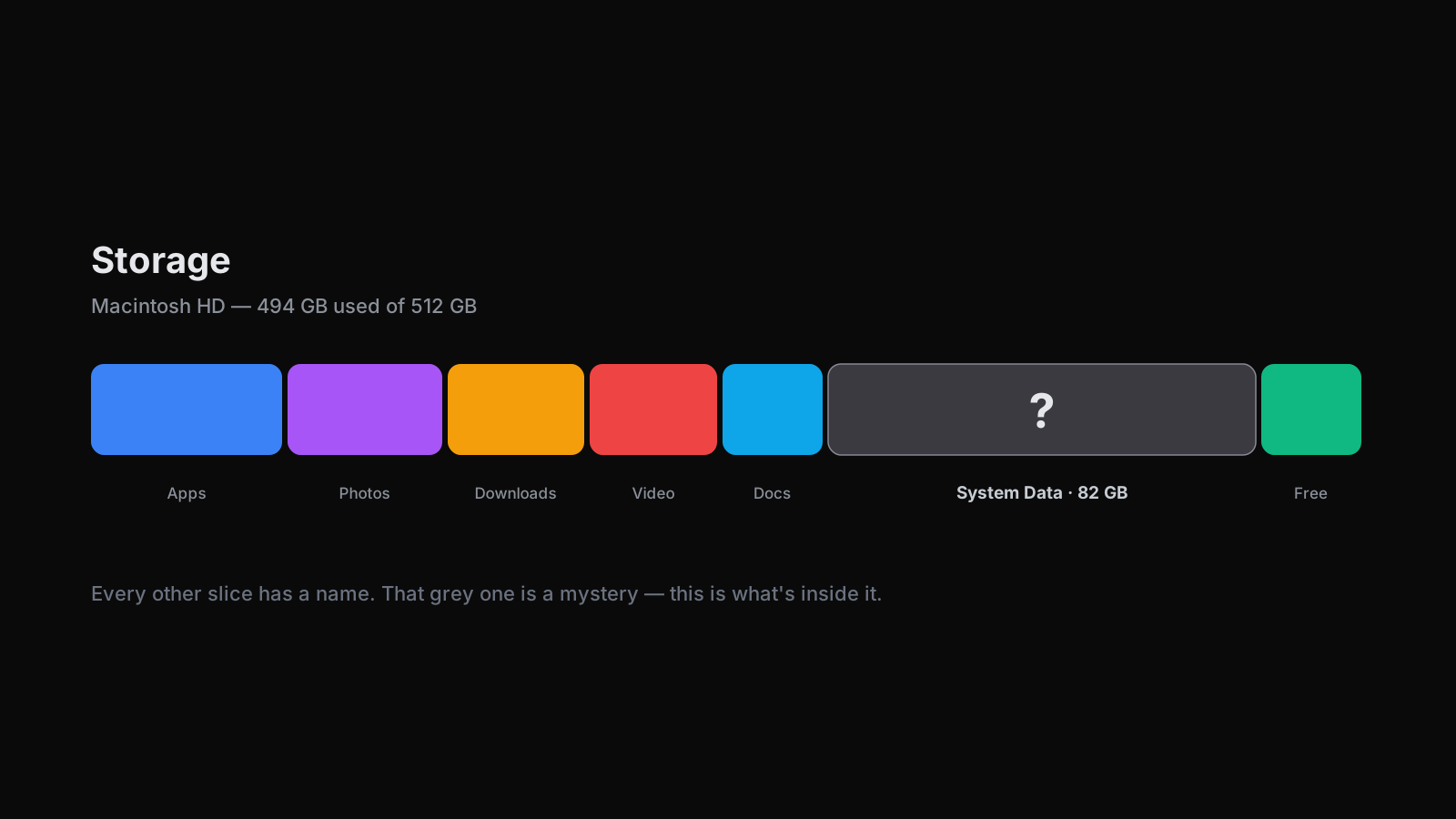
If your Mac says it is almost full and a grey bar labeled System Data is eating 80 GB or more with no obvious way to clear it, here is what that number actually is, whether it is safe to shrink, and how to reduce it on your Mac without breaking anything.
What is System Data on Mac?
System Data on Mac is a catch-all storage category in System Settings > General > Storage for files that do not fit the other categories. It includes caches, system and app logs, Time Machine local snapshots, swap and temporary files, and leftover data from apps you deleted.
These are files macOS manages but does not always clear on its own. System Data is not a folder you can open. It is whatever macOS could not sort into Apps, Photos, Messages, or Mail, which is why there is no single button to empty it. If you used an older version of macOS you may remember this roughly as Other. The label changed, the idea did not, and a large number here usually means macOS is holding recoverable files, not that something is wrong.
Here is what usually lives inside that number:
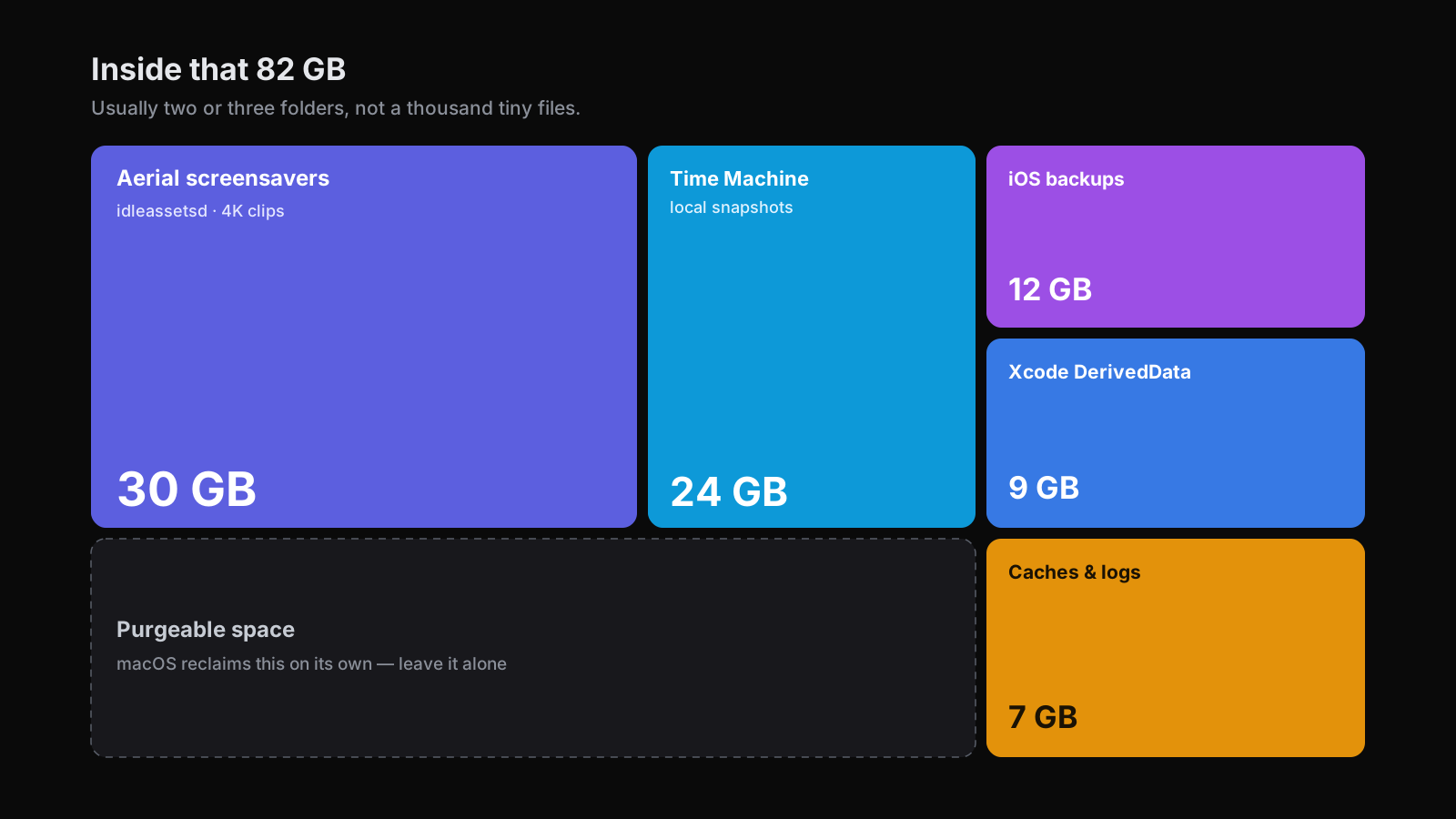
- Caches and logs. App and system caches, plus diagnostic logs that build up as you use your Mac. Nearly every app keeps a local cache to load faster, and most never trim it.
- Time Machine local snapshots. If you use Time Machine, your Mac also keeps hourly snapshots on the internal drive between backups to your external disk, even when that disk is unplugged.
- iOS and iPadOS backups. Full device backups if you have ever backed up an iPhone or iPad to this Mac.
- Disk images and installers. Leftover .dmg files and old macOS installers you downloaded and forgot.
- App leftovers and support files. Support folders and preferences left behind after you delete an app, which macOS does not always remove for you.
- Xcode DerivedData and developer caches. For developers, build artifacts and simulator data that grow fast and quietly.
- Aerial screensaver videos. The 4K screensaver clips macOS downloads, stored by a background process called idleassetsd.
- Purgeable space. Files macOS has flagged as safe to delete automatically the moment you need the room.
Why is my System Data so large?
The short version: the number is big partly because macOS counts things you never think of as your files, and partly because macOS deliberately keeps a cushion it can reclaim later.
A few reasons the figure climbs:
APFS allocates space dynamically. Your Mac's file system does not hand out fixed slices per category. It reports a large System Data bucket while it decides, in the background, what to keep and what to release. The number you see is a snapshot, not a fixed cost.
A lot of it is purgeable. macOS marks caches, snapshots, and other recoverable files as purgeable space. It looks like it is using the disk, but macOS reclaims it automatically when an app needs room. This is the single biggest reason people feel lied to: the bar says 90 GB, yet copying a large file still works.
Caches grow with everyday use. Every browser, mail client, and messaging app stores data locally so it loads faster next time. Attachments in Messages, content downloaded by Mail, and browser caches all add up, and few apps trim their own caches. On a Mac you use daily this is a slow background climb rather than one big file.
Time Machine keeps local snapshots. If you use Time Machine, macOS saves hourly snapshots on the internal disk even when your backup drive is unplugged, and holds them for roughly 24 hours. On an active Mac that can quietly account for tens of gigabytes at a time.
Media gets miscategorized. The aerial screensaver videos are a classic example. Downloaded 4K clips can reach 10 to 40 GB, and they land in System Data rather than anywhere obvious.
Old backups and leftovers pile up. A single iPhone backup can run 5 to 50 GB depending on the device. Old macOS installers, unused disk images, and app support folders add the rest. None of these announce themselves, because none of them show up as a category of their own.
So the real answer to why it is so large is usually two or three specific folders, not a thousand tiny files. That is the part worth acting on, and it is why deleting blindly wastes your time.
Is it safe to delete System Data on Mac?
Mostly yes, but not by hand and not all of it. Some of System Data is genuinely safe to remove, some will come back on its own no matter what you do, and some you should never touch. The trick is telling them apart before you delete anything.
Here is the framing that keeps your Mac healthy:
- Safe to remove. Time Machine local snapshots, old iOS backups you no longer need, stale caches, downloaded aerial videos, and finished macOS installers. These are the folders worth clearing.
- Purgeable, and it returns. Anything macOS labels purgeable will regenerate as you use your Mac. Deleting it buys you nothing lasting, and chasing it is the reason people say "I cleared System Data and it came right back."
- Never touch. System files, active swap, and anything inside /System. These keep macOS running. Removing them by hand is how a working Mac turns into a reinstall, and there is no space win worth that risk.
A quick way to picture purgeable space: macOS keeps a drawer of things it can throw out the instant you need the room. The drawer looks full, but it empties itself when a task needs the space. Deleting from it by hand just makes macOS refill it later, so you gain nothing lasting.
The honest position: System Data is not really a thing you clean. It is a number macOS cannot fully itemize, and most of it is not junk. See it first, fix the two or three folders that are genuinely oversized, and leave the rest to macOS.
How to reduce System Data on Mac (safely)
You reduce System Data by targeting the real culprits, in order, and stopping there. Do not go looking for more.
1. Check what you are actually dealing with. Open System Settings > General > Storage. Hover the categories and let the bar finish calculating. This tells you how large System Data is, but not what is inside it, which is the core limitation you are working around. Everything below is about finding the two or three folders that are genuinely large, not scrubbing the whole disk.
2. Clear Time Machine local snapshots (if you use Time Machine). If you back up with Time Machine, local snapshots are usually the fastest real win. You can turn Time Machine off briefly to let macOS release them, or list and thin them with the tmutil command if you are comfortable in Terminal. macOS will start fresh snapshots afterward, so nothing you rely on is lost. If you do not use Time Machine, you have none of these and can skip this step.
3. Remove old iOS and iPadOS backups. In the Finder or the Devices section, delete backups for phones you no longer own or backups you have since moved to iCloud. A single one can free 5 to 50 GB. Keep the most recent backup for any device you still use.
4. Clean up the aerial screensaver videos. If you do not use the aerial screensavers, the downloaded clips managed by idleassetsd can reclaim 10 to 40 GB. Switching your screensaver away from the aerial option is the safe way to stop them downloading again. Power users can find the cached clips under /Library/Application Support/com.apple.idleassetsd/, but switching the screensaver is the cleaner fix.
5. Developers: clear Xcode DerivedData. Build artifacts and old simulators rebuild on demand, so clearing DerivedData and unused simulators is safe and often frees a lot.
6. Let purgeable space go. Do not fight it. macOS reclaims purgeable space automatically when you need it. Keeping roughly 10 to 15 percent of your disk free is a good target, and macOS uses that headroom to manage the rest for you. If you have cleared the folders above and you are comfortably under that line, you are done. There is nothing left worth chasing.
A note on your macOS version. These steps work the same on macOS Tahoe (26), the current release, as they do on Sequoia and Sonoma. The Storage screen looks nearly identical across all three, and the same categories and limitations apply. If a macOS update refuses to install because the disk is full, this is usually the fastest path to the free space it needs.
What not to do. Do not run rm -rf /System or delete anything inside the System folder. Do not blindly nuke every cache in ~/Library, which can log you out of apps and slow the next launch for no lasting gain. And do not treat "wipe and reinstall" as a first resort. It is a last one. Almost every full System Data bar comes down to a handful of folders you can clear safely.
See it instead of guessing
Every guide, including this one, hands you a list. A list cannot tell you that on your Mac the aerials folder is 30 GB while your snapshots are only 4 GB, or the other way around. System Data is a spatial problem, and a list is the wrong shape for it.
The built-in Storage screen is honest about your categories, but it stops at the category. It tells you System Data is 90 GB. It will not tell you that 30 GB of that is aerial screensaver videos and 4 GB is snapshots. Third-party analyzers like DaisyDisk draw a genuinely good map of your disk, which is more than macOS gives you, but they hand the cleanup back to you and leave you to judge what is safe to remove.
FreeUpDisk shows your disk as a treemap, a map where every file and folder is a block sized to the space it uses. System Data stops being a grey bar and becomes something you can see. The big blocks are the folders worth your attention, and the small ones you can ignore. Deep Scan, an AI-powered pass, then reads the harder cases and labels each one: safe to remove, purgeable and will return, or leave alone. That is the judgment call a plain map leaves to you.
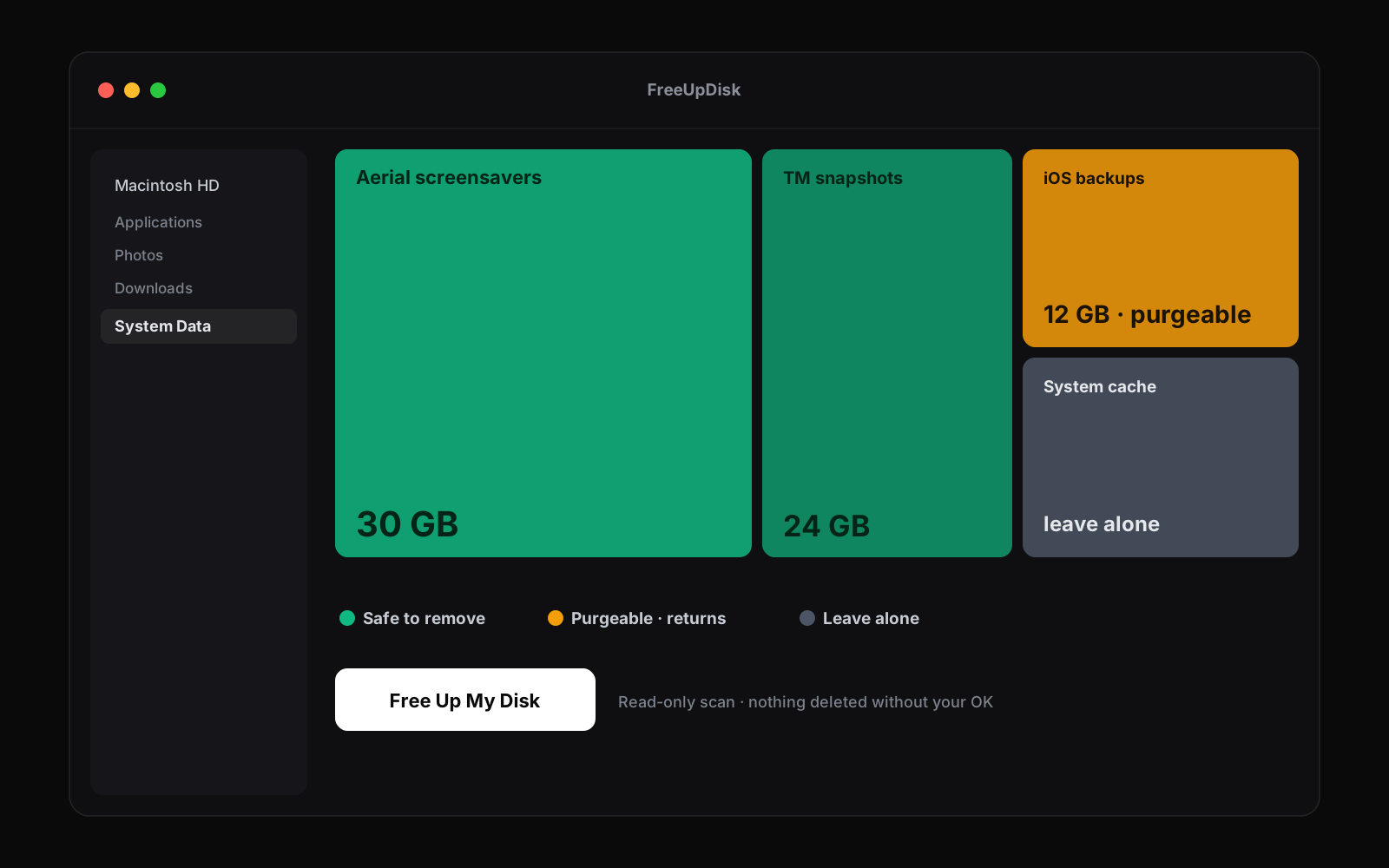
You stay in control the whole time. The scan is read-only, and nothing is deleted without your explicit OK. FreeUpDisk is built for people who just want their space back, not for anyone who wants to memorize what idleassetsd is.
You can see how the whole-disk map works, or try FreeUpDisk and be among the first to free up your disk when it launches.
Frequently asked questions
Is it safe to delete System Data on Mac?
Mostly yes, but not by hand and not all of it. Time Machine local snapshots, old iOS backups, stale caches, and downloaded screensaver videos are safe to clear. System files inside /System and active swap are not, so never delete those manually.
Why is my System Data so large?
Because macOS counts recoverable files and cushion space you never think of as yours. Time Machine local snapshots, iOS backups, aerial screensaver videos, and caches all land in System Data, and much of it is purgeable space macOS is holding until it needs the room.
How do I clear System Data on my Mac?
Target the real culprits in order. Clear Time Machine local snapshots, remove old iOS backups, delete downloaded aerial screensaver videos, and for developers clear Xcode DerivedData. Leave purgeable space alone, because macOS reclaims it automatically.
What is included in System Data?
Caches, system and app logs, Time Machine local snapshots, iOS and iPadOS backups, disk images and old installers, app leftovers, developer caches like Xcode DerivedData, aerial screensaver videos, and purgeable space. It is the catch-all for files macOS cannot sort into another category.
How much System Data is normal on a Mac?
There is no fixed normal, and on a Mac you have used for a while it often runs into the tens of gigabytes. A better rule is to keep roughly 10 to 15 percent of your total disk free overall. If System Data alone is pushing you past that, clear the two or three largest folders inside it.
Why does System Data come back after I delete it?
Because most of it is purgeable space, which macOS regenerates as you use your Mac. Caches rebuild, new snapshots are created, and the bar refills. This is expected behavior, not a failure, which is why it is better to target the few genuinely oversized folders than to chase the whole number.
See how FreeUpDisk works
Visual treemap, instant scan, safe cleanup, all for free.