 FreeUpDisk
Mac disk cleanup
macOS never shipped one. FreeUpDisk clears the caches, logs and old Trash it leaves behind.
macOS 12 or later · one email when it ships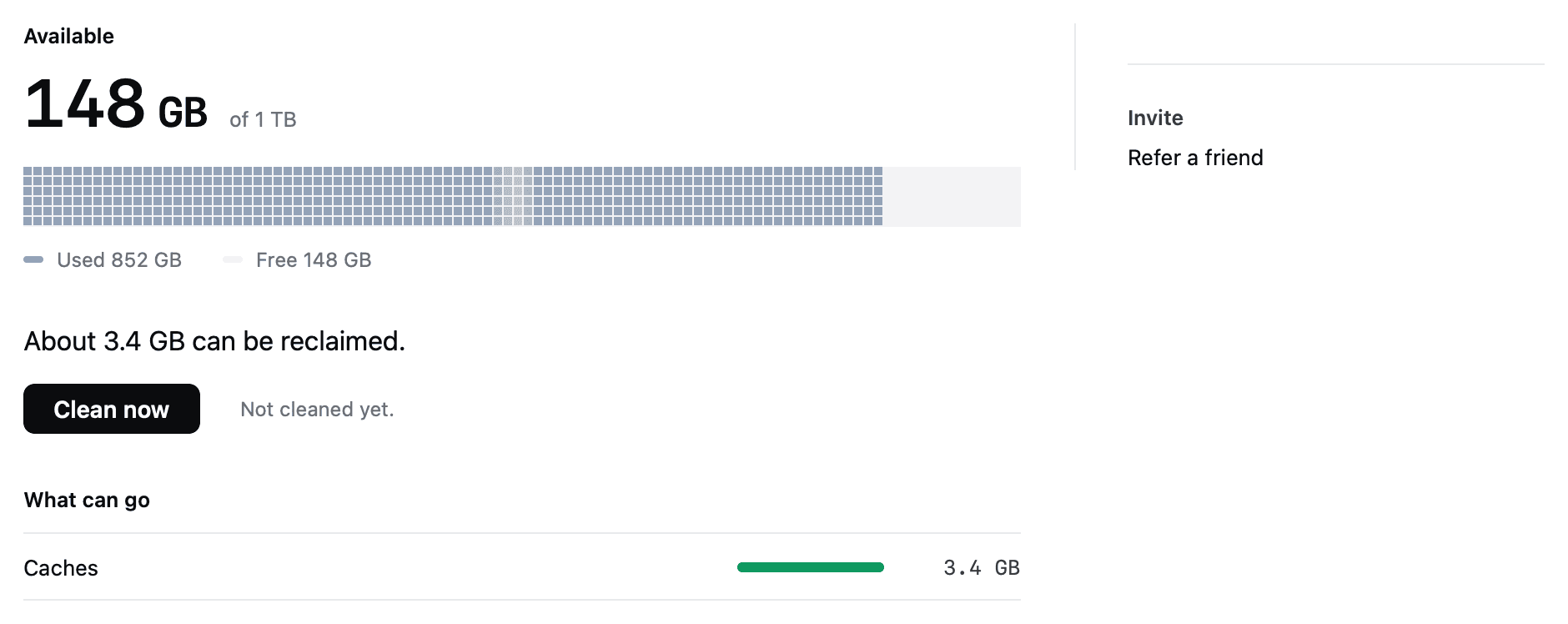
Why FreeUpDisk is safe to install
- permission
- macOS will not let any app grant itself Full Disk Access.
- scope
- Clears three folders. Everything else is off limits.
- recovery
- Removed items stay recoverable for 30 days.
- architecture
- One function in the whole app can delete a file.
- price
- Scanning is free. No account needed to clean.
Mac disk cleanup, in one screen
Your disk fills in blocks. Some are yours forever, some regrow every week, and some need your call.
Before — 32 GB free
After — 96 GB free
See the numbers
| Block | Size | Handling |
|---|---|---|
| Photos and video | 160 GB | Never eligible |
| Applications | 96 GB | Never eligible |
| macOS | 64 GB | Never eligible |
| Documents | 64 GB | Never eligible |
| ~/Library/Caches | 32 GB | Cleared automatically |
| ~/Library/Logs | 8 GB | Cleared automatically |
| Trash, over 30 days old | 24 GB | Cleared automatically |
| Old installers | 20 GB | Found, your call |
| Probable duplicates | 12 GB | Found, your call |
It clears caches, logs and old Trash
A Mac disk cleanup removes files macOS regenerates on its own. FreeUpDisk clears three of those automatically and shows you everything else before touching it.
Apps write here and almost none clean up after themselves.
~/Library/CachesCrash reports and diagnostics from apps you removed years ago.
~/Library/LogsDeleted a month ago and still holding the space.
~/.TrashThe macOS installer alone is over 12 GB.
~/DownloadsWhy a cleanup can free nothing. Deep Scan shows them to you.
APFSOne iPhone backup regularly passes 30 GB.
MobileSyncRanges are what these folders commonly reach on a Mac a few years old, not a measurement of yours.
Set it once. It clears every week.
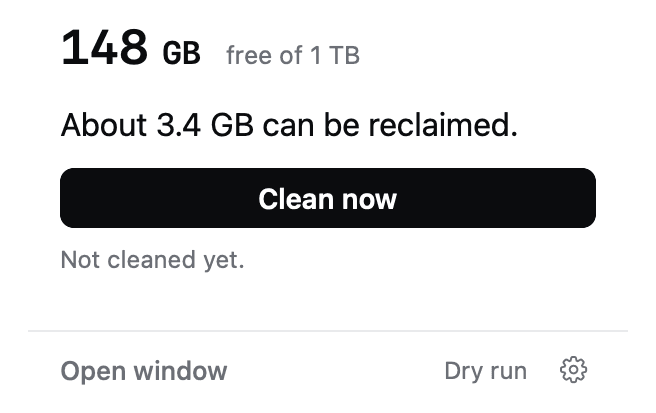
Clean now, from the menu bar
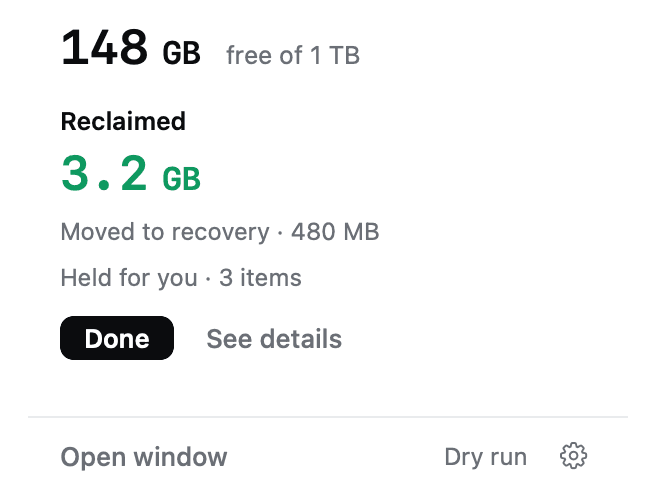
The popover shows free space, what is reclaimable, and one button. Open it, press Clean now, close it. The full window is there when you want the ledger.
Deep Scan handles the hard cases
The safe pass clears what is provably safe. Deep Scan takes the rest, big unknown files, old downloads and probable duplicates, and explains each one. It never deletes them on its own.
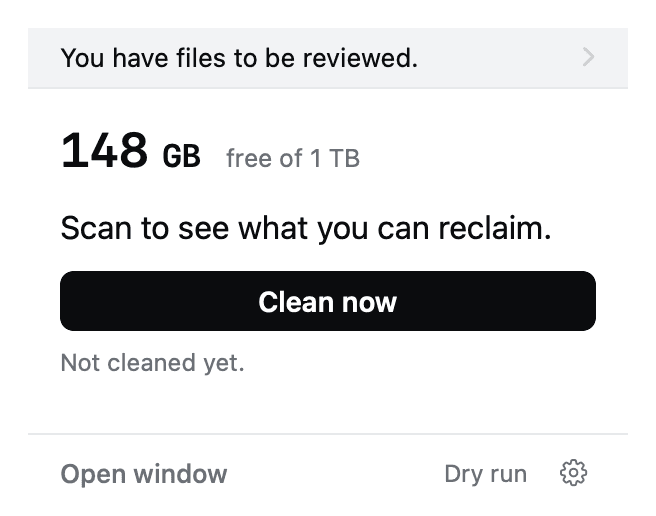
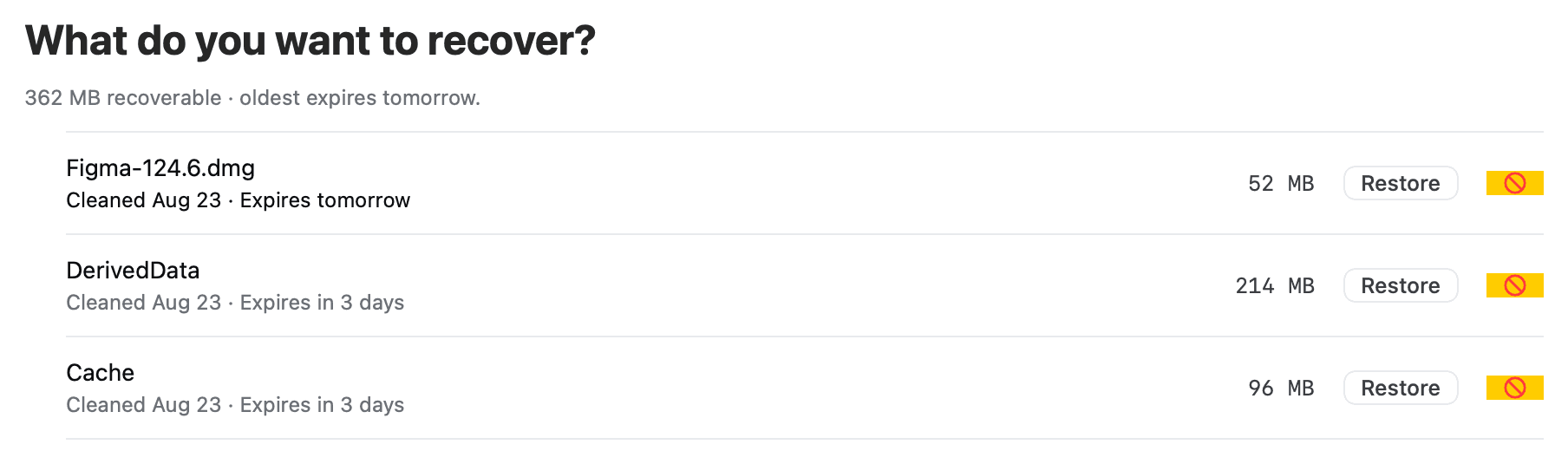
Recovery holds everything for 30 days
Removed items either go permanently or move to Recovery. Restore any of them for 30 days, with the size and the expiry date shown against each one.
It clears what Storage settings only shows
Storage settings draws eight categories and opens none of them. System Data is a label with nothing behind it.
The folders that fill up are hidden. Finder does not show ~/Library, and that is where the caches live.
Caches regrow every week. Doing it by hand buys three months, then you do it again.
Cleaners that sweep by category and show no file list are why this app category has a reputation.
Your files are never eligible
FreeUpDisk can only act on paths on a compiled-in list. Anything else, including anything it does not recognise, is untouchable.
/System, iCloud Drive, Keychains, Mail and running apps are refused even if you ask. There is no advanced mode.
Exactly one function in the core can move or delete a file, and every candidate passes seven checks to reach it.
Free Mac disk cleanup, step by step
Twenty minutes, no app. It handles the visible half of the disk.
| # | Where | What to do |
|---|---|---|
| 01 | Finder | Empty the Trash. Deleted files hold their space until you do. |
| 02 | ~/Downloads | List view, sort by Size, delete the .dmg and .pkg files. |
| 03 | System Settings › Storage | Work the Recommendations. Turn on Empty Trash Automatically. |
| 04 | ~/Library/Caches | Shift-Command-G to get there. Clear folders for apps you recognise. |
| 05 | Finder › device › Manage Backups | Remove iOS backups for phones you no longer own. |
| 06 | External drive | Move photo libraries and video projects. Nothing should automate this. |
Caches, logs and Trash refill on their own. That is the half FreeUpDisk keeps clear so you do not run this list again.
Runs on macOS 12 and later
- system
- macOS 12+
- chip
- Apple silicon
- scan
- Free, read-only
- first cleanup
- Free
- status
- Early access
Mac disk cleanup, answered
Does macOS have a disk cleanup tool like Windows?
No. Windows ships Disk Cleanup, a utility that clears temporary files, update leftovers and thumbnail caches in one pass. macOS has Storage settings instead, at System Settings, General, Storage, which shows eight category totals and four Recommendations. Storage settings deletes no cache file and cannot open the categories it draws, which is why the largest block on most Macs reads as System Data with nothing behind it.
How do I run a disk cleanup on a Mac?
Empty the Trash, sort ~/Downloads by size and remove old .dmg and .pkg installers, then open System Settings, General, Storage and work through the Recommendations. That covers the files Finder shows you. Caches in ~/Library/Caches, logs, local APFS snapshots and old iOS backups sit in hidden folders and need either manual work or an app such as FreeUpDisk.
What is safe to delete during a Mac disk cleanup?
Application caches in ~/Library/Caches, logs in ~/Library/Logs, Trash older than 30 days, and installers in ~/Downloads once the software is installed. macOS rebuilds all of these. Leave /System and /Library alone, and leave anything you cannot identify. FreeUpDisk clears only the first three automatically and shows you everything else before it acts.
Why does my Mac still say the disk is full after a cleanup?
Local APFS snapshots are the usual cause. macOS keeps hourly copies of recent data on the internal drive so it can restore between Time Machine backups, and deleted files stay inside those snapshots until they expire. Emptying the Trash does not touch snapshots, so a Mac disk cleanup can appear to free nothing while working correctly.
Are Mac disk cleanup apps safe?
It depends on what the app will delete without asking. The risk in this category is tools that sweep by category and show no file list. FreeUpDisk can only act on a compiled-in allowlist of three folders, refuses /System, iCloud Drive, Keychains and Mail even on request, and keeps everything it removes in Recovery for 30 days. macOS also will not let FreeUpDisk grant itself Full Disk Access; you give that permission in System Settings and can revoke it there.
How much free space should a Mac have?
At least 10 percent of the volume, and closer to 20 percent if you edit video or run virtual machines. macOS needs headroom for swap files, system updates and local snapshots. Below 10 percent it starts refusing updates and the machine slows down as it runs short of room to work in.
Is there a free Mac disk cleanup app?
FreeUpDisk scans free every time, with the complete file list and no size cap, because scanning is read-only and moves nothing. Cleaning uses credits called Sweepers and the first cleanup is free. There is no subscription and no renewal date. GrandPerspective and OmniDiskSweeper are free with no paid tier at all, though both show you the disk rather than clearing it.
How do I get started with FreeUpDisk?
FreeUpDisk is in early access while the first macOS build is finished. Join the list and you get one email when it is ready. Installation is then: open the .dmg, drag FreeUpDisk to Applications, grant Full Disk Access in System Settings under Privacy and Security, and press Clean now. FreeUpDisk runs on macOS 12 and later.
More ways to reclaim Mac disk space
Get the space back
Caches, logs and old Trash, cleared on a schedule. Everything else shown to you first. Free to scan, and the first cleanup is free.
macOS 12 or later · Apple silicon