 FreeUpDisk
How to Clean Up Mac Storage: A Safe, Step-by-Step Guide
If your Mac is almost full and you just want it cleared safely, here is the exact order to clean up your storage. Work the biggest wins first, stop when you have enough room, and leave the files macOS manages alone. Nothing here risks your documents, photos, or a working Mac.
How to clean up storage on your Mac
To clean up storage on your Mac, clear the largest recoverable folders in order: empty the Trash, clear Downloads and old installers, delete old iOS backups, turn off downloaded screensaver videos, remove unused apps, offload files to iCloud or an external drive, and clear caches. Leave purgeable space and system files to macOS. Most Macs get the room they need from the first three or four steps.
The rest of this guide walks each step, with the space it typically frees and what is safe to touch. You do not need Terminal for any of the core steps.
Before you start: see what is actually using space
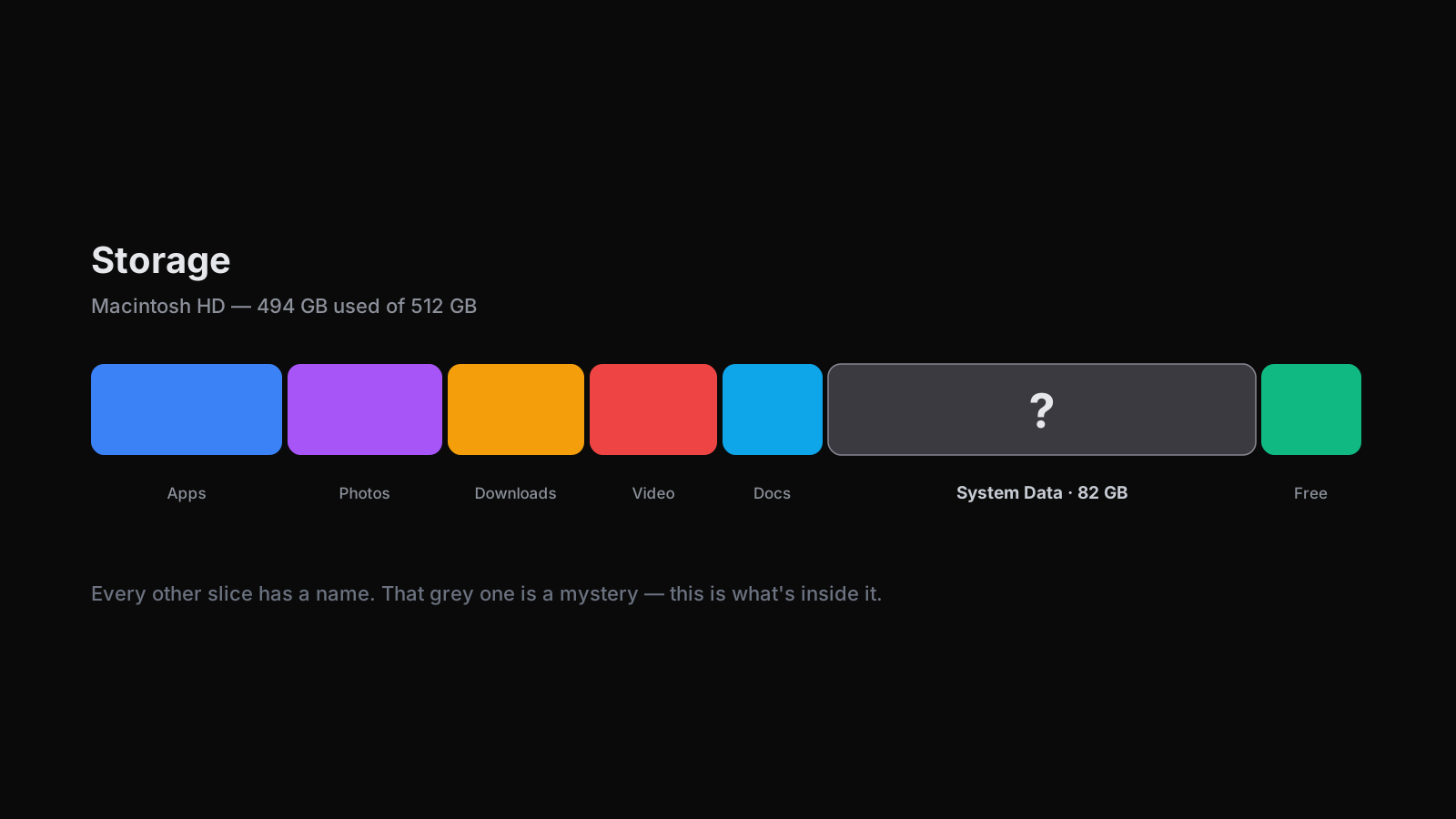
Before you delete anything, it helps to know where your space went. Open the Apple menu, then System Settings, then General, then Storage. Let the colored bar finish calculating and hover the categories to see rough sizes.
This tells you which categories are large, but not the individual files inside them. It is still worth a look, because it stops you spending an hour on a 2 GB folder while a 40 GB one sits untouched. If you want the full picture down to individual files, see how to check what is using your Mac storage.
The steps, in the order that pays off fastest
1. Empty the Trash
Files you move to the Trash keep using space until the Trash is emptied. Right-click the Trash in the Dock and choose Empty Trash. Remember that some apps have their own trash: Photos keeps deleted images in a Recently Deleted album for 30 days, and Mail keeps a Trash mailbox. Empty those too if you are tight on space.
2. Clear your Downloads folder and old installers
The Downloads folder is one of the quietest space hogs on a Mac. Open it from the Dock or choose Go, then Downloads in the Finder, and sort by size. Delete the installers, .dmg disk images, and .zip archives you already used. A year of downloads can easily be 10 to 30 GB, and almost none of it is worth keeping.
3. Delete old iOS and iPadOS backups
If you have ever backed up an iPhone or iPad to this Mac, those backups may still be here, and a single one can run 5 to 50 GB. Connect the device, select it in the Finder sidebar, then under General click Manage Backups. Delete backups for devices you no longer own or have since moved to iCloud, and keep the most recent backup for any device you still use.
4. Turn off downloaded screensaver videos
The 4K aerial screensavers macOS downloads in the background can reach 10 to 40 GB and hide inside System Data. If you do not use them, open System Settings, then Screen Saver, and switch away from the aerial options so macOS stops downloading new clips. This is the safe way to reclaim that space without digging through system folders.
5. Remove apps you no longer use
Uninstall apps by opening the Applications folder and moving the ones you do not use to the Trash, or use Launchpad. Large creative and game apps can be 5 to 20 GB each. Dragging an app to the Trash leaves some support files behind, so if an app included its own uninstaller, use that instead for a cleaner removal.
6. Offload files to iCloud or an external drive
If your files are worth keeping but you do not need them all on the internal disk, move them off. In the Storage screen, Recommendations can Store in iCloud so your Mac keeps recent files local and offloads the rest when space runs low. Media libraries are the best candidates, since photos and videos use the most room. An external drive works the same way for anything you access rarely.
7. Clear caches, and know what comes back
Every browser and messaging app keeps a local cache to load faster, and most never trim it. Clearing a browser cache from inside the browser is safe and frees a few gigabytes. The honest caveat: caches rebuild as you use your Mac, so this frees less than people expect and the space returns. Do not manually empty the system cache folders in Library by hand, because that can log you out of apps and slow the next launch for no lasting gain.
8. Tackle System Data
System Data is the large grey block in your Storage screen, and it is where caches, logs, Time Machine local snapshots, and purgeable files land. You cannot open it directly, and most of it is purgeable space that macOS reclaims on its own, so do not chase the whole number. The steps above already clear its biggest real contents: snapshots, iOS backups, and screensaver videos. For the full breakdown of what is inside and what is safe to remove, see what System Data on Mac actually is.
9. Developers: clear Xcode and build caches
If you write code, Xcode DerivedData, old simulators, and package caches grow fast without you noticing, often 20 GB or more. These rebuild on demand, so clearing DerivedData and unused simulators is safe and frees a lot. Node projects add up too: a few abandoned node_modules folders can hold several gigabytes each.
What takes up the most space on a Mac
Once you have done the steps above, it helps to know where storage tends to concentrate, so you know what to watch:
- Media libraries. Photos, videos, and screen recordings are usually the single largest category on a personal Mac.
- System Data. Caches, snapshots, and screensaver videos, often tens of gigabytes.
- Old backups. iOS and iPadOS backups you forgot about.
- Unused apps. Large creative and game apps you installed once.
- Downloads. Installers and archives that pile up unnoticed.
Notice these are a handful of folders, not a thousand tiny files. That is the whole point: cleaning up your Mac is about finding the two or three folders that are actually large and clearing those, not scrubbing every corner of the disk.
See it instead of guessing
Every guide, including this one, hands you a list. A list cannot tell you that on your Mac the screensaver folder is 30 GB while your backups are only 4 GB, or the other way around. Which step is worth your time depends on your Mac, and the built-in Storage screen stops at the category total.
FreeUpDisk shows your whole Mac as a treemap, a map where every file and folder is a block sized to the space it uses. The big blocks are the folders worth your attention, and the small ones you can ignore. Deep Scan, an AI-powered pass, then reads the files that are hard to judge and labels each one: safe to remove, purgeable and it will come back, or leave alone. That is the judgment this list leaves to you; Deep Scan makes it for you.
You stay in control the whole time. The scan is read-only, and nothing is deleted without your explicit OK. You can see how the whole-disk map works, or try FreeUpDisk and be among the first to clean up your Mac the moment it launches.
Frequently asked questions
How do I clean up my Mac storage?
Work biggest win first. Empty the Trash, clear your Downloads folder and old installers, delete old iOS backups, turn off downloaded screensaver videos, remove apps you no longer use, offload files to iCloud or an external drive, and clear caches. Leave purgeable space and system files alone, because macOS manages those for you.
Why is my Mac storage full when I deleted everything?
Usually because of purgeable space and System Data. macOS holds recoverable files like caches and Time Machine local snapshots and reports them as used until it needs the room, so the bar stays high even after you delete files. Clear the two or three genuinely large folders and leave the purgeable space to macOS.
Does cleaning up storage make a Mac faster?
A little, and mainly when your disk was nearly full. macOS needs some free space to run well, so freeing up room when you are down to your last few gigabytes can help. Once you have comfortable headroom, clearing more storage does not keep making the Mac faster.
Is it safe to clear caches on a Mac?
Yes, for most app and browser caches, which macOS and your apps rebuild automatically. The catch is that clearing them frees less than people expect and the space often returns. Do not manually delete everything in the system Library folders, because that can log you out of apps and cause problems for no lasting gain.
How do I clean System Data on my Mac?
Target the real culprits inside it: Time Machine local snapshots, old iOS backups, downloaded aerial screensaver videos, and for developers Xcode caches. You cannot open System Data directly, and most of it is purgeable space that macOS reclaims on its own, so clear the large folders and leave the rest.
What is taking up the most space on my Mac?
On most Macs it is a handful of things: large media libraries, old iOS backups, System Data (caches, snapshots, screensaver videos), unused apps, and a full Downloads folder. Checking your Storage screen or a visual map shows which of these is actually largest on your Mac, which is where your cleanup time is best spent.
See how FreeUpDisk works
Visual treemap, instant scan, safe cleanup, all for free.
Related guides
What Is System Data on Mac? What's Inside and How to Clear It
System Data is macOS's catch-all storage bucket. See exactly what is inside it, whether it is safe to delete, and how to shrink it on your Mac safely.
ReadHow to Check Mac Storage: Every Way to See What's Using Space
See how much storage your Mac has left and what is using it. Every built-in way to check Mac storage, what each one shows, and how to see it file by file.
ReadHow to Free Up Disk Space on Mac When Your Storage Is Full
Your Mac disk is full. Here is how to free up space fast, biggest wins first, from large media and old backups to System Data, without deleting anything you need.
Read